
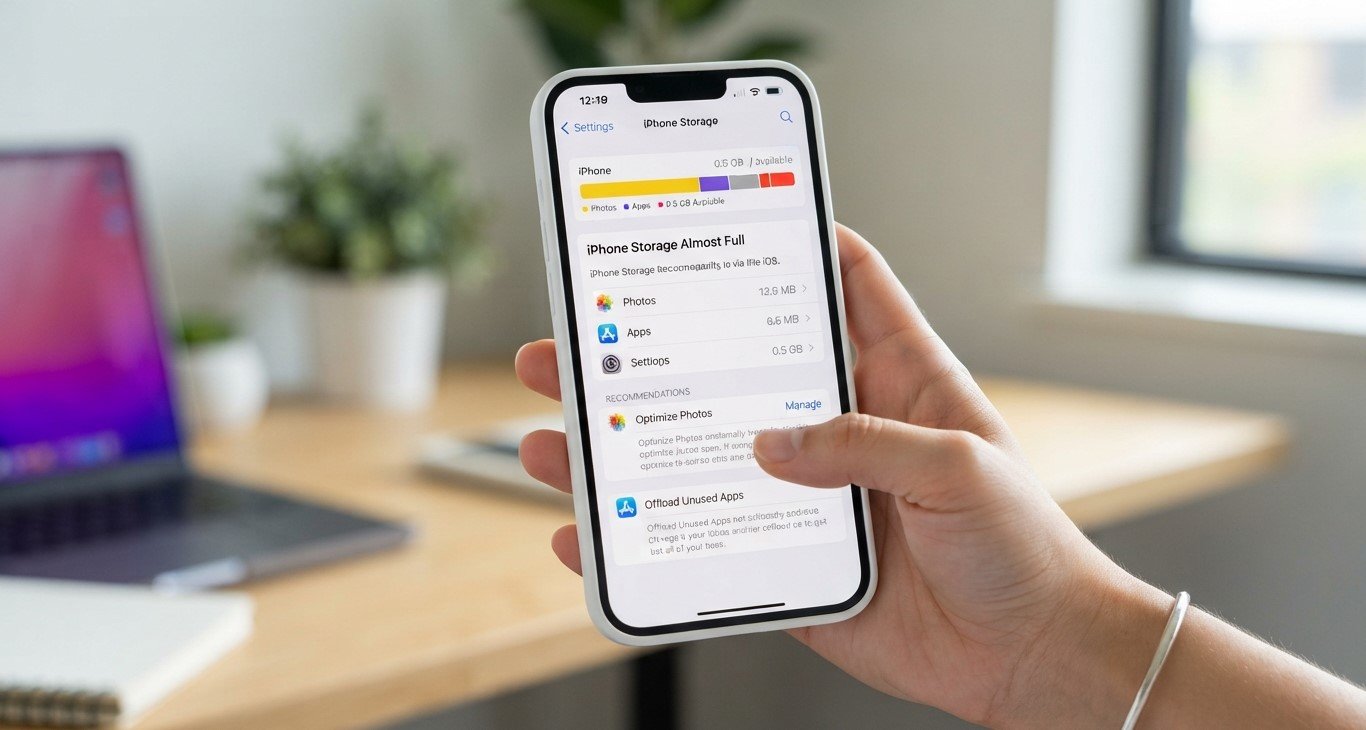
Is your iPhone constantly displaying the “Storage Almost Full” warning? Running out of storage can prevent you from downloading apps, recording videos, taking photos, and installing software updates. Fortunately, you can often free up valuable space without deleting important personal information. Whether you need simple storage management tips or professional assistance, Nanotech Mobile can help you explore smartphone solutions. If you are searching for the best iPhone repair in Regina or reliable iPhone repair Regina services, understanding how to manage your storage is a great starting point.
Table of Contents
- Why Does iPhone Storage Fill Up?
- 7 Smart Ways to Free Up iPhone Storage
- When to Seek Professional Assistance
- Frequently Asked Questions
- Conclusion and Call to Action
1. Why Does iPhone Storage Fill Up?
Your iPhone stores different types of information, including photos, videos, applications, downloaded files, messages, and system data.
Over time, these files can consume significant storage space. High-resolution videos, large applications, duplicate photos, and cached information are common reasons your available storage decreases.
2. 7 Smart Ways to Free Up iPhone Storage
Here are seven practical methods to create more space while protecting important data.
1. Identify What’s Using Your Storage
Start by checking which files and applications consume the most space.
- Open Settings.
- Select General.
- Tap iPhone Storage.
Your iPhone will display a storage breakdown and recommendations. This helps you identify unnecessary files before deleting anything.
2. Use iCloud Photos
Photos and videos often take up considerable storage.
You can enable iCloud Photos through Settings > Your Name > iCloud > Photos and turn on Sync this iPhone.
If you enable Optimize iPhone Storage, smaller versions can remain on your device while full-resolution originals are stored in iCloud.
Make sure your photos have successfully synced before removing anything manually.
3. Offload Unused Applications
Some applications take up space even when you rarely use them.
Go to Settings > General > iPhone Storage, select an unused application, and tap Offload App if available.
This removes the application itself while keeping its documents and data for potential reinstallation.
4. Delete Unnecessary Downloads
Downloaded movies, music, documents, and offline files can consume significant storage.
Check your Files app, streaming applications, and download folders. Remove files you no longer need, but review them carefully before deleting.
5. Manage Message Attachments
Photos, videos, and other attachments in Messages can gradually consume storage.
Open Settings > General > iPhone Storage > Messages to review large attachments and conversations.
Save important files before removing unnecessary attachments.
6. Clear Browser Data
Website information and browsing history can occupy some storage space.
To clear Safari website data, go to Settings > Apps > Safari > Clear History and Website Data.
Be aware that this may remove browsing history and website-related information.
7. Review Recently Deleted Photos
Deleted pictures and videos may remain in the Recently Deleted album for up to 30 days.
Open Photos > Collections > Recently Deleted and review its contents.
Only permanently delete files after confirming that you no longer need them and have backed up anything important.
3. When to Seek Professional Assistance
If your iPhone continues showing storage warnings despite removing unnecessary files, checking storage settings may help identify the remaining problem.
Sometimes software glitches, unusually large system data, or other device issues can affect storage management.
Nanotech Mobile can help you explore iPhone diagnostic and troubleshooting options in Regina if you experience persistent storage-related problems.
4. Frequently Asked Questions
Why does my iPhone storage fill up so quickly?
Photos, videos, applications, messages, downloads, and system data can gradually consume available storage.
Can I free up iPhone storage without deleting photos?
Yes. You can use Optimize iPhone Storage with iCloud Photos, offload unused applications, and remove unnecessary downloads.
Does offloading an app delete its data?
Offloading generally removes the application while keeping its documents and data on your device.
Will clearing Safari history delete my photos?
No. Clearing Safari browsing data does not normally delete photos stored in your Photos library.
Does iCloud storage increase my iPhone’s physical storage?
No. iCloud storage is separate from your iPhone’s internal storage, although features such as Optimize iPhone Storage can help reduce the space used by local photo files.
5. Conclusion
An iPhone displaying a storage warning does not necessarily mean you need to delete important personal information. Checking storage usage, optimizing photos, offloading unused applications, managing downloads, and reviewing message attachments can help create additional space. If you continue experiencing storage problems, Nanotech Mobile can help you explore suitable troubleshooting options when looking for the best iPhone repair in Regina or dependable iPhone repair Regina services.
Call to Action
Is your iPhone running out of storage or struggling to manage files? Contact Nanotech Mobile to discuss your device concerns and explore available assistance in Regina.