
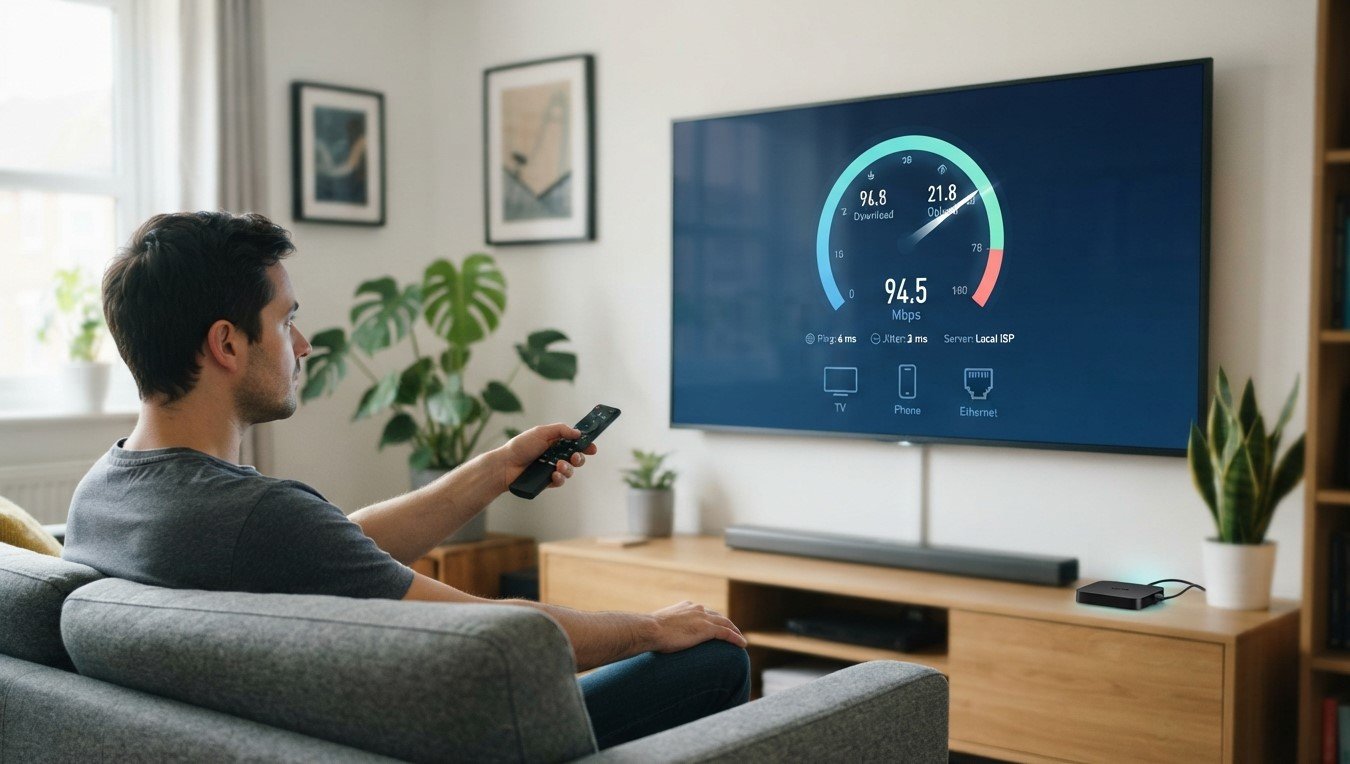
Checking your internet speed is an important troubleshooting step when IPTV channels buffer, videos take too long to load, or streaming quality suddenly drops. However, some Smart TVs and streaming boxes do not include a web browser, making it difficult to open a traditional online speed-test website.
Fortunately, you do not need a browser to measure your connection. You can use a compatible speed-test application, another device connected to the same network, or your router’s built-in diagnostic tools. Whether you use IPTV India services or an Indian IPTV Box, these methods can help you understand whether your internet connection is affecting playback.
Table of Contents
- Why Should You Test Internet Speed on Your TV or Box?
- Method 1: Use a Speed-Test Application
- Method 2: Test With a Phone or Computer
- Method 3: Check Your Router’s Diagnostic Tools
- What Results Should You Look At?
- Common Speed-Test Mistakes
- Frequently Asked Questions
1. Why Should You Test Internet Speed on Your TV or Box?
A speed test measures how quickly data travels between your device and a test server.
It generally reports three important measurements:
- Download speed: How quickly your device receives data.
- Upload speed: How quickly your device sends data.
- Ping (latency): How long it takes for a response to travel between your device and the server.
These measurements can help identify connection problems, but download speed alone does not explain every streaming issue. Wi-Fi interference, packet loss, network congestion, and server performance can also affect playback.
2. Method 1: Use a Speed-Test Application
If your television or streaming box has an official app store, check whether a reputable speed-test application is available.
Follow These Steps
- Open the device’s official app store.
- Search for a trusted speed-test application.
- Check its compatibility and developer information.
- Install the application.
- Close other streaming applications.
- Run the test and wait for the results.
If the application is unavailable or incompatible, do not download random APK files from unfamiliar websites. Use another testing method instead.
3. Method 2: Test With a Phone or Computer
A smartphone or computer can help you estimate the internet performance available to your TV or streaming box.
How to Test
- Connect your phone or computer to the same Wi-Fi network as your TV.
- Open a reputable speed-test service or application.
- Select a nearby test server, if available.
- Run the test.
- Repeat it two or three times at different intervals.
For a more useful comparison, keep the testing device in approximately the same location as your television.
Important: A phone’s result is not an exact measurement of the TV’s connection. Different Wi-Fi antennas, Ethernet connections, and hardware capabilities can produce different speeds.
If possible, compare the results using both Wi-Fi and Ethernet.
4. Method 3: Check Your Router’s Diagnostic Tools
Some routers include built-in internet speed tests or network diagnostic features.
To check:
- Open your router’s official administration app or interface.
- Look for Internet Diagnostics, Speed Test, or Network Tools.
- Run the available test.
- Review the download speed, upload speed, and latency.
A router-based test measures the connection from the router rather than directly from your television. It is useful for identifying internet-service problems but cannot fully measure the TV’s Wi-Fi performance.
5. What Results Should You Look At?
Do not focus only on the download-speed number. Consider the following measurements:
| Measurement | What It Tells You |
|---|---|
| Download speed | Available incoming bandwidth |
| Upload speed | Available outgoing bandwidth |
| Ping | Responsiveness of the connection |
| Jitter | Variation in response times |
| Packet loss | Data that fails to reach its destination |
For video streaming, a stable connection is often more important than achieving an exceptionally high speed.
A connection can show a good download result but still experience buffering because of packet loss, wireless interference, or an overloaded streaming server.
6. Common Speed-Test Mistakes
Avoid these mistakes when checking your connection:
- Testing while several devices are downloading large files.
- Running a test far away from the TV and assuming the results are identical.
- Ignoring the difference between Wi-Fi and Ethernet.
- Relying on only one speed-test result.
- Testing during an unusually quiet period and assuming performance will remain constant.
- Assuming every buffering problem is caused by slow internet.
For accurate troubleshooting, test at the time when you normally experience streaming problems. If possible, compare results during busy and quiet periods.
Frequently Asked Questions
1. Can I test internet speed without a browser on my TV?
Yes. You can use a compatible speed-test application, a phone or computer on the same network, or your router’s diagnostic tools.
2. Is testing on my phone accurate for my IPTV box?
It provides a useful comparison but does not measure the box’s exact connection. Differences in hardware and Wi-Fi reception can affect results.
3. Is Ethernet better for speed testing?
Ethernet provides a more consistent connection and removes many wireless-related variables. It is useful when diagnosing Wi-Fi problems.
4. Why does my speed test look good but IPTV still buffers?
Buffering can result from packet loss, high latency, Wi-Fi interference, server congestion, or application problems—not just insufficient download speed.
5. How often should I test my connection?
You do not need to test constantly. Run a test when problems occur and compare results at different times if the issue is intermittent.
Conclusion and CTA
You do not need a web browser to check the internet speed available to your television or streaming box. A compatible speed-test application, another device on the same network, or your router’s diagnostic tools can provide useful information.
If you are using IPTV India services or an Indian IPTV Box, remember to evaluate connection stability, latency, and packet loss alongside download speed. Understanding these measurements can help you identify network issues and enjoy a more consistent streaming experience.
 wavetel.business
 alina.khurana
 hani.meggy